This article is general guidance, not legal advice.
For an accounting or professional services office, OSHA planning means spotting workplace risks, reducing them where practical and checking that the controls work. A good workstation setup supports that effort by helping people work safely and comfortably through computer, document and client-facing tasks.
Key Takeaways
- Malaysia’s Occupational Safety and Health Act 1994 applies broadly to workplaces; check the current Act and relevant guidance for your situation.
- Start with everyday risks: prolonged sitting, awkward screen positions, cluttered walkways, overloaded sockets and heavy document boxes.
- Set up the workstation around the person and the work, with the screen, keyboard, chair and frequently used items within comfortable reach.
- Ask employees about discomfort and near misses, then review the work area and make practical improvements.
- Furniture can support a safer setup, but it does not replace risk assessment, training, maintenance or other workplace safety measures.
The 2-minute version
- Walk the office: Look for blocked routes, loose cables, unstable furniture, glare, poor lighting and storage that could fall or strain someone.
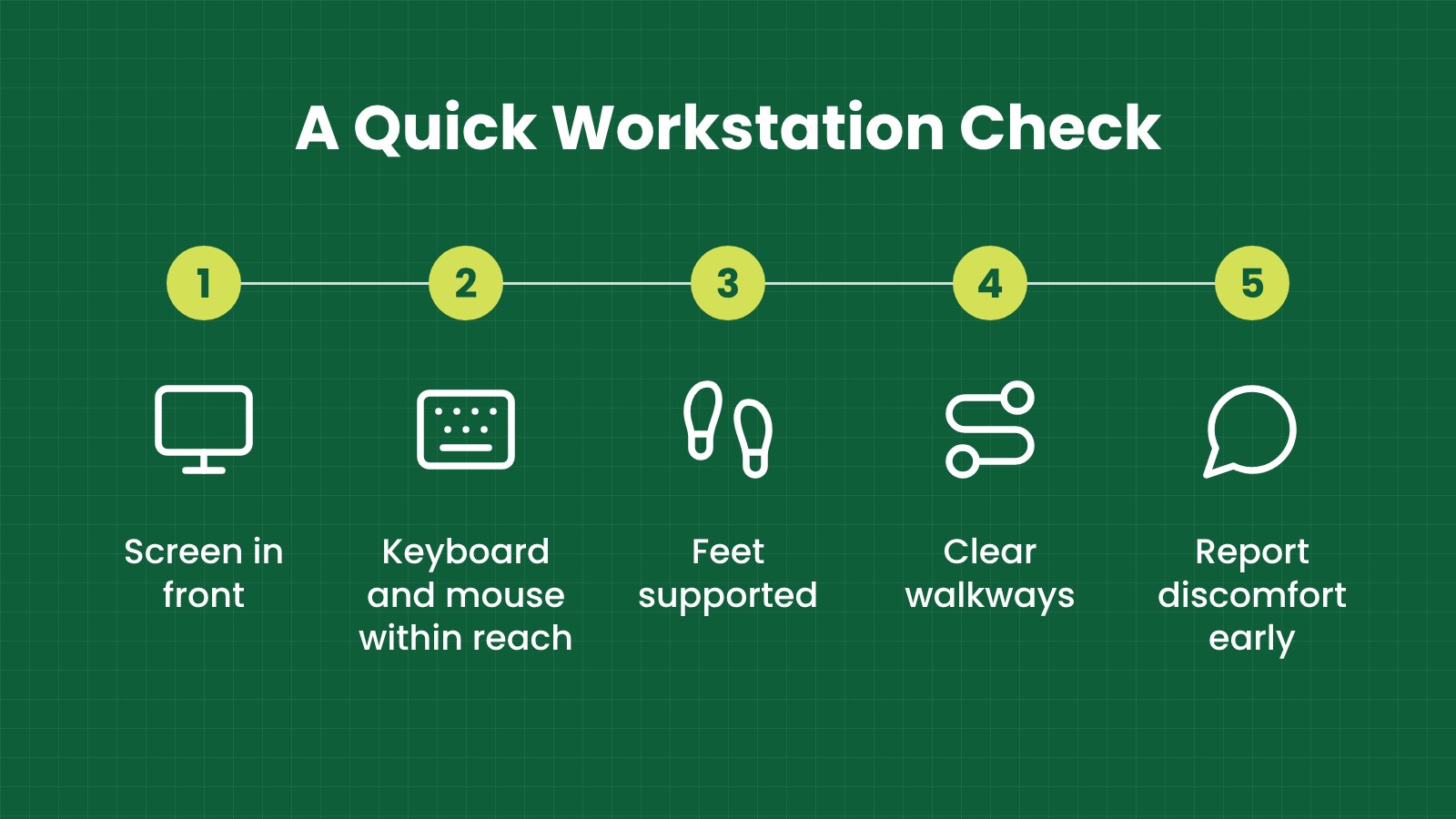
- Check each workstation: Confirm that the employee can see the screen, reach the keyboard and mouse, and sit with feet supported.
- Ask the team: Find out where discomfort, fatigue, trip risks or difficult tasks tend to occur.
- Fix practical issues: Reposition equipment, clear walkways, improve storage and arrange maintenance where needed.
- Record and review: Note what was found, what action was taken, who is responsible and when the fix will be checked.
What does OSHA mean for an accounting or professional services office?
In Malaysia, “OSHA” commonly refers to the Occupational Safety and Health Act 1994, also known as Act 514. The Act states that it applies to places of work throughout Malaysia, subject to the exceptions set out in the Act. It includes duties for employers to protect employees’ safety, health and welfare at work, so far as is practicable.
For an office, this does not mean that every workstation needs the same solution. The employer should consider the actual work, the people doing it and the conditions in the workplace. An accountant who spends long periods using a laptop may face different ergonomic concerns from a receptionist who alternates between a counter, phone calls and filing.
“Ergonomics” means arranging the work, equipment and environment to fit the person doing the job. In an office, that includes how long a task lasts, how often it is repeated, the posture it requires and whether equipment is positioned comfortably.
DOSH, the Department of Occupational Safety and Health Malaysia, publishes guidance on office safety and ergonomics. Its material can help employers identify issues and plan improvements. Guidance documents are not a substitute for checking the current law or getting competent advice for a specific situation.
If you need a broader overview of workplace safety responsibilities, read OSHA for Offices in Malaysia.
Which workstation risks should office managers look for?
In accounting and professional services, work can involve long periods of screen use, repeated data entry, reviewing paper documents, phone calls, meetings and occasional movement of files or office supplies. A risk check should reflect these tasks rather than focus only on the furniture.
| Work activity or area |
What to look for |
Practical first step |
| Computer work |
Screen too low or too far away, frequent neck turning, glare, or keyboard and mouse positions that cause reaching |
Adjust the layout so the screen is easy to view and frequently used items are within comfortable reach |
| Long periods of sitting |
Limited opportunity to change posture, discomfort, or a chair that does not suit the user and task |
Review the chair and desk setup and encourage task variation where the work allows it |
| Walkways and shared areas |
Boxes, bags, open drawers, trailing cables or furniture narrowing a route |
Keep routes clear and provide suitable places for bags, files and equipment |
| Filing and supplies |
Heavy or awkward items stored too high, too low or far from where they are used |
Store frequently used items within convenient reach and plan how heavier loads will be moved |
| Electrical equipment |
Damaged plugs or cables, overloaded power points, or cables crossing a walking route |
Arrange checks or repairs by an appropriate person and keep cables routed safely |
| Meeting and client areas |
Unstable chairs, crowded circulation space, or furniture blocking access |
Check furniture condition and maintain clear access through shared spaces |
This list is a starting point, not a complete risk assessment. The right checks depend on the workplace, the tasks and any specific concerns raised by employees.
How should you set up a desk for computer and document work?
There is no single desk height or chair setting that suits everyone. A useful setup lets the employee work without repeatedly reaching, twisting or bending to see the screen. Allow for differences in body size, tasks and equipment rather than assuming that one workstation arrangement fits all.
Position the screen and input devices
Place the main screen in front of the user where practical, so they do not need to keep turning their neck. Adjust its position to make viewing comfortable and reduce glare from windows or lights. If the employee works mainly from a laptop for extended periods, consider whether a separate keyboard and mouse would allow a more suitable arrangement.
Place the keyboard and mouse where the user can operate them without reaching forward or holding the shoulders awkwardly. Keep frequently used items close by. If the job involves reviewing paper documents alongside a screen, arrange them to limit repeated twisting or looking far to one side.
Check the chair and desk relationship
When seated, the employee should be able to work with shoulders relaxed and arms in a comfortable position. Their feet should be supported by the floor or a suitable footrest. The chair should be stable and adjustable enough to help the user find a workable position for the task.
Check that the desk has enough space for the equipment and documents needed, without forcing the user to place the keyboard or mouse at the edge or stack items in a way that creates instability. Keep drawers and moving parts in good condition, and do not use damaged furniture until it has been checked or repaired.
A height-adjustable desk may help some users vary their working position, but it is not a complete ergonomic solution by itself. The employee still needs a suitable screen, chair, input devices and task arrangement. Standing for long periods can also create discomfort, so any change should suit the work and the person.
Make adjustments part of normal work
Workstations change when employees move desks, receive new equipment or take on different tasks. Include a basic setup check during onboarding and when a workstation changes. Encourage staff to report discomfort early, and make it clear how they can request an adjustment.
For more detailed seating and screen-work guidance, refer to the latest DOSH publications. The DOSH ergonomics guidance page lists resources on seating, display screen equipment and ergonomic risk assessment.
How can an employer review ergonomic risks in the office?
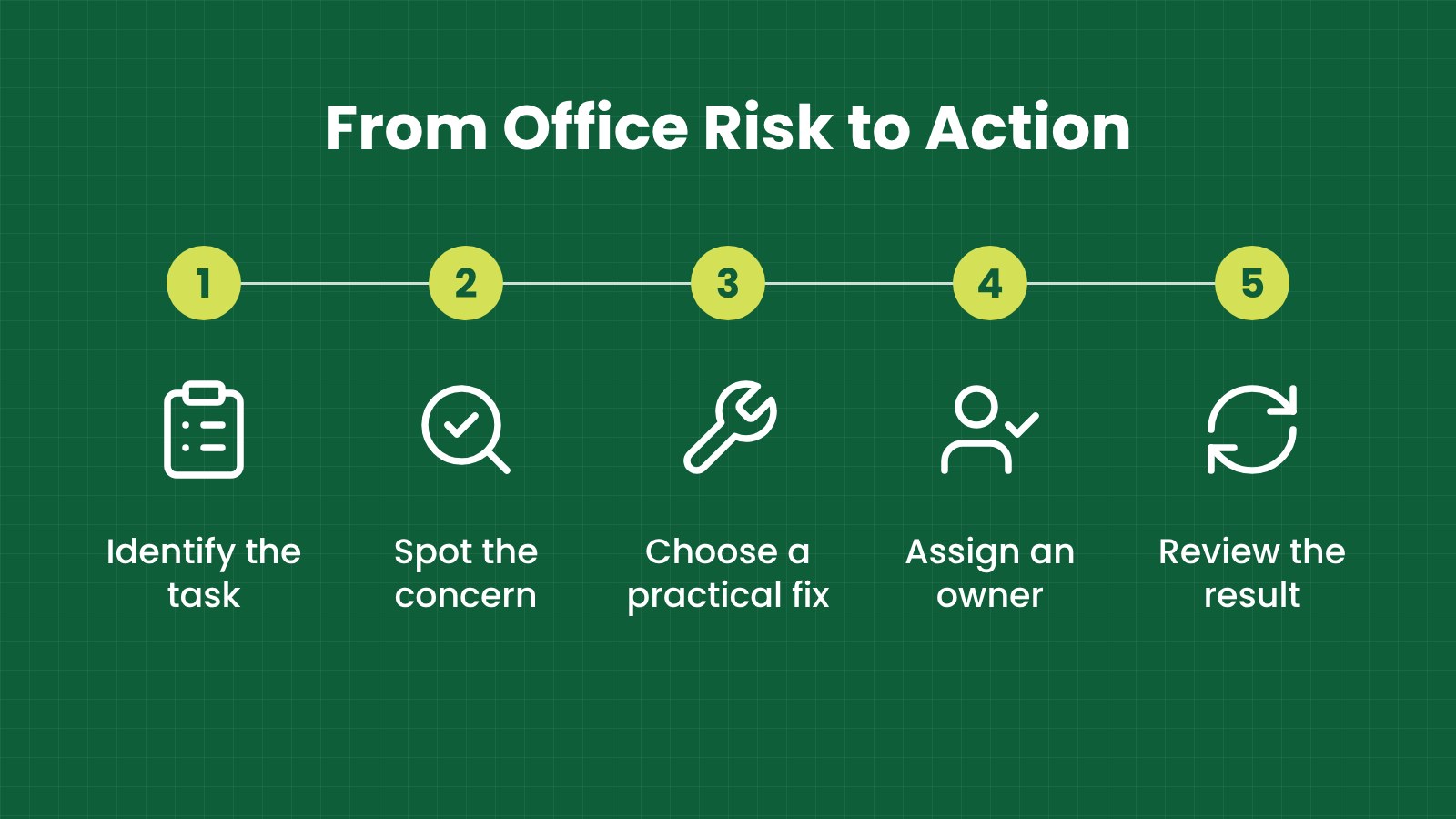
A review should connect the task to the conditions that may affect the employee. For example, note how long a person works at a screen, whether they repeat the same movement, where documents are placed and whether the workspace allows them to change posture. Observe the work as it is normally done, and ask the employee what makes the task difficult.
“Risk assessment” means identifying hazards, considering who could be affected and deciding what action is needed. Keep the process proportionate to the work, but do not rely on assumptions such as “it is only an office” or “nobody has complained.”
| Review stage |
Questions to ask |
Example record |
| Identify the task |
What work is done here, how often and for how long? |
Daily data entry, client calls and document review |
| Identify the concern |
Is there discomfort, awkward reaching, glare, clutter or a near miss? |
Monitor is off-centre; employee turns repeatedly to read it |
| Choose an action |
Can the layout, equipment, storage or work method be changed? |
Move the screen to the centre and place reference files nearby |
| Assign responsibility |
Who will arrange the change and by when? |
Office manager to reposition equipment this week |
| Check the result |
Did the action address the concern? Is follow-up needed? |
Ask the employee after the adjustment and record the outcome |
Where a concern is complex, persistent or outside the team’s competence, seek appropriate professional advice. Do not diagnose a medical condition based on a workstation observation.
What else should an office safety review cover?
Workstation comfort is only one part of office safety. Check access routes, housekeeping, storage, electrical equipment, lighting, ventilation, emergency arrangements and the condition of shared furniture. Consider visitors and contractors as well as employees, especially in reception and meeting areas.
Plan how employees can raise concerns and how the organisation will follow up. If there is a safety and health committee or a designated person coordinating these matters, include them in the process where relevant. The Act has specific provisions relating to committees and coordinators; whether a particular requirement applies depends on the circumstances. Check the current Act and official guidance before making a compliance decision.
Keep records that help you manage the work: issues raised, actions agreed, completion dates and review outcomes. A record should be accurate and useful. Avoid describing a workstation as “compliant” simply because it has a certain chair or desk.
Fictional Malaysian example: an accounting team in Bayan Lepas
This example is fictional and is for illustration only.
A 12-person accounting team in Bayan Lepas is preparing month-end reports. Several staff spend most of the day switching between spreadsheets and printed documents. One employee reports neck discomfort, while another has been stepping around boxes placed beside a filing cabinet.
The office manager reviews the work areas with the employees. They move one screen to face the user, position shared reference files closer to the people using them and arrange a separate storage spot for incoming boxes. They also check that routes to the meeting room and exit are clear, and ask a suitable person to inspect a damaged power cable.
The manager records each action, assigns an owner and follows up with the team. The changes do not prove that every risk has been removed; they give the office a practical way to respond, check results and identify any further concerns.
What common mistakes should office managers avoid?
- Buying furniture before understanding the task: First check how people work, what equipment they use and what problems they report.
- Assuming one setup fits everyone: People differ in body size, tasks and working preferences. Allow for adjustment and review.
- Treating a standing desk as a cure-all: Position changes may help some people, but the whole workstation and work pattern still matter.
- Ignoring small trip hazards: Bags, delivery cartons and cables can create avoidable risks in narrow routes.
- Waiting for a formal complaint: Near misses, repeated workarounds and early discomfort can point to issues worth reviewing.
- Keeping records without follow-up: A checklist is useful only when someone acts on findings and checks whether the action worked.
- Assuming a product certification proves office compliance: Product documentation may support a purchasing decision, but it does not replace workplace risk management.
- Relying on an old guide as the only legal reference: Check the current Act and current DOSH material, particularly where duties or requirements may have changed.
How can furniture support a safer workstation?
Furniture can make it easier to arrange equipment, support a comfortable working position and keep shared areas organised. When comparing options, consider adjustability, stability, usable surface area, storage needs, maintenance and how the item fits the task. Ask employees to try or review the setup where practical.
For an office refresh, iGreen can help organisations in Kuala Lumpur and Penang review furniture and workspace requirements.
Request a site assessment from iGreen (KL and Penang).
Frequently asked questions
Does OSHA apply to an accounting office in Malaysia?
The Occupational Safety and Health Act 1994 states that it applies to places of work throughout Malaysia, subject to exceptions in the Act. Check the current official Act and seek advice if you need to determine how a specific legal duty applies to your organisation.
Does every employee need a new ergonomic chair?
Not necessarily. Review the task, the current chair and the employee’s needs first. Some concerns may be addressed by adjusting the existing chair or changing the workstation layout; others may call for different equipment.
Is a height-adjustable desk required for OSHA compliance?
This article does not identify a general requirement for every office to provide a height-adjustable desk. Choose equipment based on the work, identified risks and applicable requirements, and verify legal questions against current official sources.
How often should we check office workstations?
Review them when employees report a concern, when tasks or equipment change, and as part of your normal workplace safety process. The appropriate frequency depends on the workplace and its risks.
What should we do if an employee reports pain?
Listen, review the task and workstation, and arrange appropriate adjustments or professional advice where needed. Do not try to diagnose the cause. Follow your organisation’s reporting and health procedures.
Reviewed by
Official sources