A useful ergonomic check starts by watching how people work and asking what feels awkward or tiring. Small changes to a chair, desk, screen or work layout can help reduce avoidable strain.
Key Takeaways
- Look at the whole task, not only the chair or desk.
- Ask staff what feels uncomfortable, difficult to reach or hard to maintain through the day.
- Fix simple workstation issues where practical and check whether the change helps.
- Get professional advice when concerns continue, are complex or need specialist assessment.
- iGreen can assess your office setup and help with chairs, desks, monitor arms and layout planning.
The 2-minute version
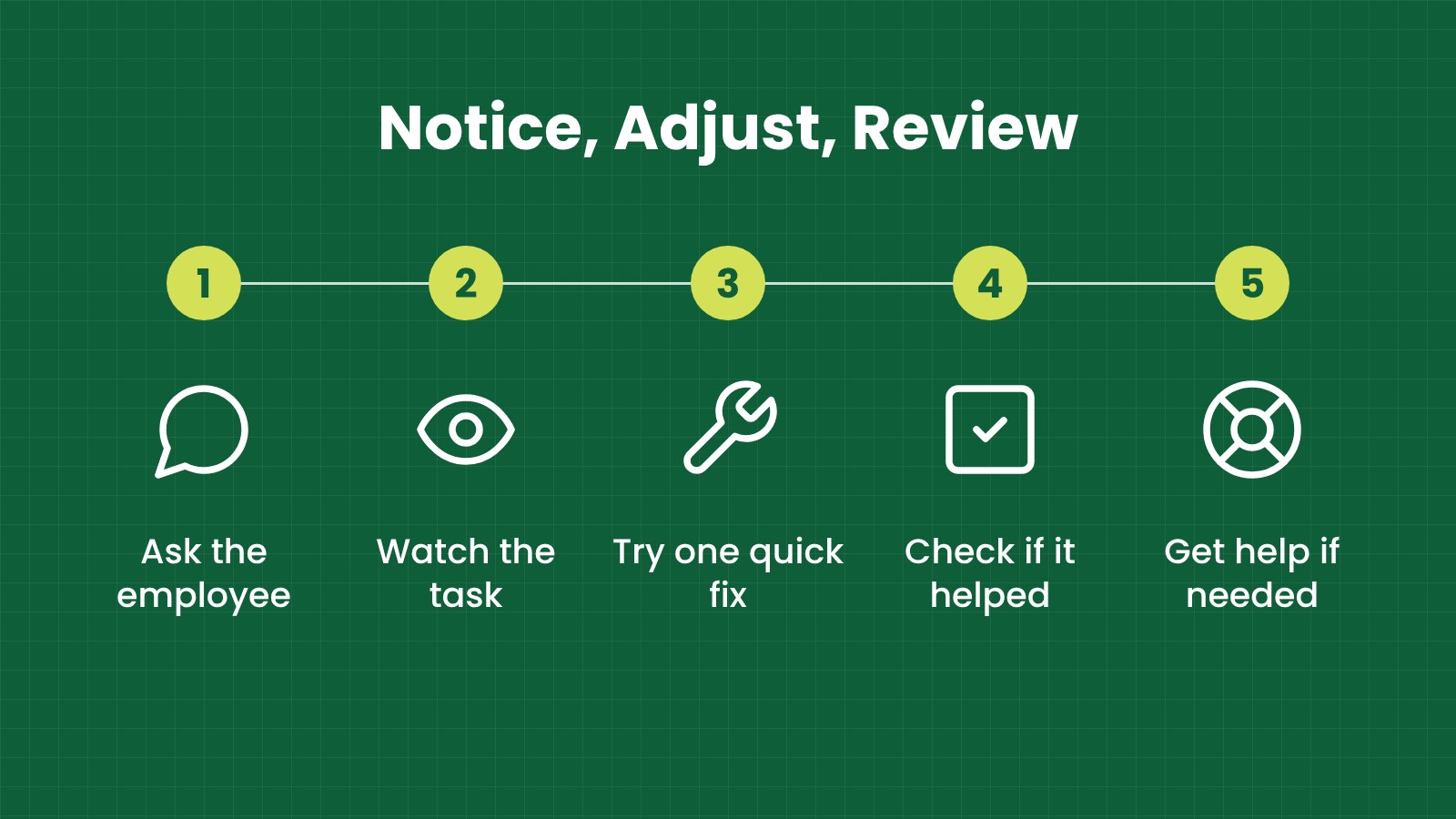
- Watch the work: Notice how staff sit, reach, look at screens and move between tasks.
- Ask the user: Find out what feels uncomfortable or makes the job harder.
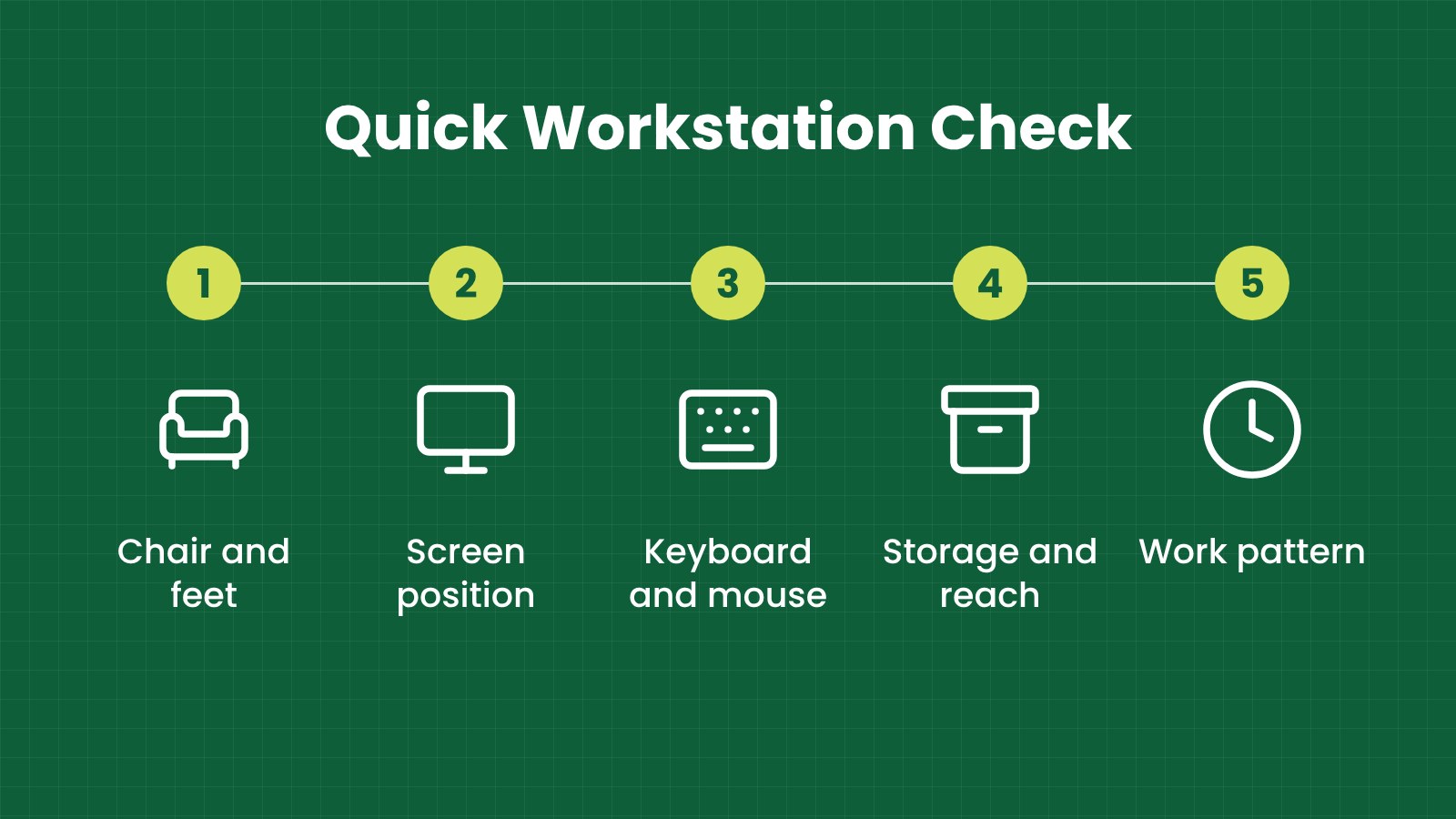
- Check the setup: Review the chair, desk, screen, keyboard, mouse and frequently used items.
- Make one practical change: Adjust positions or clear the work area, then ask if it helped.
- Follow up: Record open concerns and get professional help when the problem needs more than a simple adjustment.
What is an office ergonomic risk check?
It is a practical look at how a person’s work, equipment and workspace fit together. You observe the task, ask the person doing it what is difficult, and look for small changes that could make the work more comfortable and manageable.
Ergonomics does not mean buying an expensive chair for every employee. A better first step is to understand the work: how long people use a screen, what they reach for, whether they share workstations and which tasks they repeat.
DOSH’s ergonomics guidance page lists resources for workplace ergonomics. Its Guidelines on Ergonomics Risk Assessment at Workplace 2017 describes a systematic way to identify and manage ergonomic concerns. This article turns that general approach into a simple starting checklist. For broader office safety context, see OSHA for Offices in Malaysia.
How do you use the checklist?
Walk through the work area while it is being used, if possible. A desk may look tidy when empty but feel crowded once the employee is using a laptop, phone, paperwork and other equipment.
Ask the employee what they notice. They may mention that an item is always out of reach, the screen is hard to see, or the chair is uncomfortable after a period of work. Their feedback helps you understand what the task requires.
Use the table to note what you observe and the quick fix you try. Treat the suggestions as starting points. A fix that helps one person or task may not suit another. Check back with the employee and adjust the setup if needed.
| Area |
Check |
Quick fix to try |
| Chair |
Can the person sit with feet supported and work without feeling pushed forward or cramped? |
Adjust the chair height and position; check whether another chair or a footrest is needed |
| Desk |
Is there enough clear space for the equipment and task? |
Move unused items and arrange work materials within comfortable reach |
| Screen |
Does the person lean forward, look down for long periods or turn repeatedly to see it? |
Reposition the screen; consider a monitor arm or laptop stand with separate keyboard and mouse |
| Keyboard and mouse |
Are they easy to reach without stretching or holding the shoulders awkwardly? |
Bring them closer and clear space in front of the user |
| Phone and frequently used items |
Does the person reach across the desk or cradle a phone while typing? |
Move items closer or use a headset where it suits the task |
| Shared workstation |
Can different users make basic adjustments before starting work? |
Show users how to adjust the chair and screen; keep the setup instructions nearby |
| Storage |
Are files, bags or supplies on the floor or stacked where the person must reach awkwardly? |
Provide practical storage and move frequently used items to an easier-to-reach place |
| Work pattern |
Does the task keep the person in one position for a long stretch? |
Where the work allows, vary tasks or build in opportunities to change position |
What posture red flags should you notice?
One posture does not tell you everything. People naturally move during work, and the best setup depends on the person and task. Look for repeated or prolonged positions that seem awkward, especially when the employee says they are uncomfortable.
- The person repeatedly leans toward the screen to read it.
- The head or neck stays turned to one side to view a monitor or documents.
- The shoulders are raised or held tense while typing or using a mouse.
- The person reaches across the desk again and again for the phone, keyboard or files.
- The wrists are bent for long periods while using a keyboard or mouse.
- The person perches on the edge of the chair or sits without their feet supported.
- The chair is pushed away because it does not fit the task or the user.
- The person often changes position, rubs an area or takes work materials to another surface because the setup is difficult.
These signs are prompts to ask questions and review the workspace. They are not a diagnosis. Avoid telling someone that a posture has caused a medical condition.
When should a manager get professional help?
Get advice from an appropriate health, safety or ergonomics professional when the concern continues after basic adjustments, affects several workers, involves a complex task or requires a specialist assessment. You may also need help where equipment, work design or the building layout limits the options.
If an employee reports ongoing pain or other health concerns, follow your organisation’s normal health and safety process and encourage them to seek appropriate medical advice. A manager should not diagnose the cause or promise that a furniture change will resolve a health condition.
For a broader or more formal assessment, a professional can observe the task, review relevant information and recommend controls that suit the work. Keep track of the concern and any changes tried so the follow-up is clear.
How can you keep a useful follow-up record?
A short record helps you remember what was observed, what change was made and whether it helped. Keep it simple. Avoid collecting unnecessary personal details or writing a medical opinion.
| What to note |
Example |
Follow-up |
| Task or area |
Accounts team workstation |
Check whether other team members use the same setup |
| What you noticed |
Employee turns repeatedly to view a side monitor |
Ask the employee which screen is used most |
| Change tried |
Moved the main screen to face the user |
Ask whether the adjustment makes the task easier |
| Open concern |
Screen position is limited by desk depth |
Review suitable equipment or request professional advice |
| Person responsible |
Facilities manager to check monitor arm options |
Agree when to review the result |
What common checklist mistakes should you avoid?
- Checking the furniture but not the task: A comfortable chair alone may not fix a screen, reach or layout problem.
- Assuming one position suits everyone: Different people and tasks may need different adjustments.
- Making many changes at once: Try practical adjustments and check whether they help.
- Ignoring employee feedback: The person using the workstation can explain what is difficult.
- Treating a checklist as a diagnosis: Record what you observe and refer health concerns through the right process.
- Forgetting shared users: Make sure people who share desks know how to adjust the setup.
- Failing to follow up: Check whether the change worked instead of assuming it did.
Fictional Malaysian example: an office in Kuala Lumpur
This example is fictional and is for illustration only.
A manager at a Kuala Lumpur office notices that an employee often leans toward a laptop screen and reaches across the desk for a mouse. The manager asks the employee how the workstation feels during normal work and watches how the tasks are done.
They move the laptop to a more comfortable viewing position, add a separate keyboard and mouse, and clear space in front of the user. The employee tries the new arrangement over the next few workdays. The manager checks back and learns that the screen position is better, but the chair still does not suit the workstation.
The manager asks facilities to review chair options and records the follow-up. The office treats the checklist as a way to spot and address practical concerns, not as a medical assessment.
How can iGreen help with an ergonomic review?
iGreen can assess your office workstations and help identify practical furniture and layout changes. We can review chair and desk fit, adjust monitor arm positions, and help plan work areas around the way your team uses them.
Where it suits the space and work, we can recommend ergonomic chairs, height-adjustable desks and other workstation furniture. The aim is to help reduce avoidable strain by improving the setup—not to diagnose a condition or promise that every concern will be resolved.
Request a site assessment from iGreen (KL and Penang).
Frequently asked questions
How often should a manager check office workstations?
Review a workstation when someone raises a concern, when the task or equipment changes, or when you notice a repeated difficulty. You can also include a simple check when employees move desks or join the team.
Do we need to replace a chair if someone feels uncomfortable?
Not always. First ask what feels uncomfortable and check the chair and workstation adjustments. If a practical adjustment does not help, review other chair options or get appropriate advice.
Can a monitor arm help with screen position?
It can make screen adjustment easier in some workstations. Check that the desk and monitor are suitable and position the screen based on the user’s task and feedback.
Can iGreen assess our workstations?
Yes. iGreen can review workstation furniture and layout and help with chair, desk and monitor arm adjustments, including height-adjustable desk options where suitable.
Reviewed by
Official sources